Showing posts with label Video. Show all posts

Thursday, May 16, 2024

NFL Helmet Schedule 2024 Spreadsheet

 The 2024 NFL schedule was released yesterday and since I used my Excel skills to automate the creation of this spreadsheet I was able to create the NFL Helmet Schedule in less than a minute! All 32 teams, all 18 weeks of the season (now 17 games plus one bye week), all in one spreadsheet. But instead of looking like this boring mess:


You can see all 544 helmets!

NFL Helmet Schedule 2024 Spreadsheet


Watch the video below to see just how easy it is to update the NFL helmet schedule spreadsheet since it has been automated:


As you can see, the NFL helmet schedule is printable too. You can save the spreadsheet as a PDF file or print it out and pin it up in your cubicle at work. If you do, please email or tweet me a picture of it hanging up - I'd love to see it!

Please note, an email is required to download it. I do this so you will be automatically updated you if changes or additions are made and will update you when the next year’s schedule is ready. I do not use your email for anything else.

As always, I welcome any comments or suggestions about how to fix or improve the sheet! How can I improve this football spreadsheet into something you’ll use all the time during pro-football season? What future features would you like to see?

Monday, March 18, 2024

2024 March Madness Brackets and Basketball Squares

If you're looking for 2024 March Madness Brackets, no, I won't be posting any here or making my own. Once again, I will be using the best March Madness brackets in Excel, created by David Tyler (and I will continue to use his until he decides to no longer update them). They’re very polished and easy to use. There are only 68 teams in the field but the spreadsheet is already setup to handle up to 128 teams, if they expand in the future. There are two sheets: the bracket and the pool manager. Instructions are included but its very intuitive. Take a look:


As I’ve said countless times before, you can learn a lot by looking at Excel templates made by others. Here are 5 things I do when examining a new spreadsheet using David's March Madness brackets as example.

March Madness Squares

When I created my new Super Bowl Squares Unlimited spreadsheet for last month's football game, I had the goal in mind to be able to use the same sheet for other sports, like basketball. I tweaked my template a little and now you can use it for March Madness Squares!


There's multiple ways you could go about playing March Madness Squares:

1. Everyone keeps the same random numbers for every game
2. The random numbers change for every round
3. The random numbers change for every game

Here's a quick demo of how to use squares for basketball:


You can play either way with my spreadsheet. I designed it to be very versatile. Payout percentage can change per round as well. Update the settings how you want them then you click Generate Scoreboard once for every game, so 32 times in the first round. There are a lot of other options built in that can be ignored - it's all up to you!

Will you be playing 2024 March Madness Brackets, March Madness Squares, or both? Let me know in the comments below.

Friday, May 12, 2023

2023 NFL Helmet Schedule Spreadsheet

The 2023 NFL schedule was released yesterday and since I used my Excel skills to automate the creation of this spreadsheet I was able to create the NFL Helmet Schedule in less than a minute! All 32 teams, all 18 weeks of the season (now 17 games plus one bye week), all in one spreadsheet:


A job that used to take hour by moving helmets manually is now so easy to do. Yes, that's why I love the power of macros and automation. I wrote the macro myself but nowadays you could probably just ask ChatGPT to write the macro for you.

On previous versions of the sheet I divided out the two conferences on separate sheets: NFC and AFC. This year, I’ve put all the teams into one sheet. However, there is a new filter option where you can filter by NFC or AFC or even by division: AFC North, AFC South, etc.

Download the 2023 NFL Helmet Schedule Spreadsheet here


Watch the video below to see how the filter works. I also so a tip in Excel how to select multiple objects at once with the mouse. And I walk through the populate helmets macro code as well. Lots of good stuff here!

As you can see, the NFL helmet schedule is printable too. You can save the spreadsheet as a PDF file or print it out and pin it up in your cubicle at work. If you do, please email or tweet me a picture of it hanging up - I'd love to see it!

Please note, an email is required to download it. I do this so you will be automatically updated you if changes or additions are made and will update you when the next year’s schedule is ready. I do not use your email for anything else.

As always, I welcome any comments or suggestions about how to fix or improve the sheet! How can I improve this football spreadsheet into something you’ll use all the time during pro-football season? What future features would you like to see?

Sunday, January 29, 2023

Super Bowl Squares 2023 - Unlimited Ways to Play

Since 54 ways to play still wasn't enough, I've created a new version of my Super Bowl Squares template that should allow nearly limitless ways to play. I'm going to show you how to use it and what make it awesome. But first, let's take a quick look back at the evolution of my football grid game template.

I’ve been making Super Bowl Squares templates available for you to download for over 10 years now. The first version in 2012 was very plain and simple and was basically just meant to be printed.


I started adding more features and automation in 2014, beginning with a button you would click that runs a macro to generate the random numbers. 

The problem I soon discovered is there are countless ways to play Super Bowl Squares. Initially, I tried to account for different ways to play by having multiple sheets within the workbook. But this got very messy very quickly. A new user would open the template and could be very confused by all the sheets. I wanted a better solution.

In 2021, I released a new version that featured 54 different ways to play Super Bowl Squares all contained within one easy to use spreadsheet. When you first open the sheet, it has a nice clean look with only one sheet visible. You select the options for how you want to play, click Generate Squares, and it sets up the sheet exactly for the version you want to play.


The way it works is all the scoring systems are already built into the sheet. If you go to the Squares or the Manager sheet you will find many hidden rows or columns. The Generate Squares macro simply hides or unhides the data based on the user’s selections.

54 ways to play is a lot – but it is still not enough. Over the years I continued to receive countless requests for different ways to play. I don’t have time to make very specific sheets for each individual request – I needed a solution to account for unlimited ways to play. 

That’s when I had the idea for Super Bowl Squares Unlimited. The main difference in how it works is there are no pre-built scoring systems. Instead, they are built on the fly by macros. 


If you’re using iOS or cannot enable macros you will not be able to use this sheet, sorry. The is a simple printable PDF in the download and here is a Google sheet.

The first thing you’ll want to do is go to the Manager sheet and complete columns B and C by inputting all the player names and using the drop down to select how many squares for each. You can type the names manually into each square but you would also have to list the names on the Manager sheet and make sure they match (no typos). 

Back to the Squares sheet, the buttons in the Grid Tools box are pretty self explanatory. On the squares sheet, click the Random Names button to populate the grid with the player names in random positions. Click Randomize Numbers to generate the list of random numbers. Similar to previous sheet.

The main difference that gives this sheet more flexibility is the score boards are not built in, they are generated when the user clicks the Generate Scoreboard button every time there is a scoring event. Meaning, the settings can be changed. Let’s look at some examples.


So that’s how you use the Super Bowl Squares Unlimited spreadsheet template. I’m excited to hear your thoughts. Is it better than the previous sheet? This is brand new and hasn’t been tested too much so there could be some bugs. But I’d love to know your thoughts on which sheet you will use and why so leave me a comment or email. Thanks for watching and have fun playing Super Bowl Squares!


Sunday, June 12, 2022

2022 NFL Helmet Schedule Spreadsheet

 As I explained last year, I finally automated this spreadsheet so I was able to create the 2022 NFL Helmet Schedule in less than a minute! All 32 teams, all 18 weeks of the season (now 17 games plus one bye week), all in one spreadsheet:


A job that used to take hour by moving helmets manually is now so easy to do. Yes, that's why I love the power of macros and automation. See how fast the sheet can be created by watching this clip:


On previous versions of the sheet I divided out the two conferences on separate sheets: NFC and AFC. This year, I’ve put all the teams into one sheet. However, there is a new filter option where you can filter by NFC or AFC or even by division: AFC North, AFC South, etc.

Download the 2022 NFL Helmet Schedule Spreadsheet here


Watch the video below to see how the filter works. I also so a tip in Excel how to select multiple objects at once with the mouse. And I walk through the populate helmets macro code as well. Lots of good stuff here!


As you can see, the NFL helmet schedule is printable too. You can save the spreadsheet as a PDF file or print it out and pin it up in your cubicle at work. If you do, please email or tweet me a picture of it hanging up - I'd love to see it!

Please note, an email is required to download it. I do this so you will be automatically updated you if changes or additions are made and will update you when the next year’s schedule is ready. I do not use your email for anything else.

As always, I welcome any comments or suggestions about how to fix or improve the sheet! How can I improve this football spreadsheet into something you’ll use all the time during pro-football season? What future features would you like to see?

PS. I will not be rooting for the dumpster fire known as the Cleveland Browns this season so if any fanbases want to recruit, now's your chance to pitch me on your favorite team!

Monday, March 28, 2022

Free Meeting Scheduling Excel Template

How often do you ask friends, family, or coworkers which day is the best to get together? Whether it’s a meeting, party, trip, or some other occasion I find myself in these situations all the time. There are several apps and online calendars available to help you coordinate which day works for everyone involved. I used to use a site called Doodle all the time.  The problem with these services is they are not always free, they’re constantly changing and you have to keep relearning how to use them, you have to make an online account, and so on. So I did what I always do – I decided to make an Excel template to determine which day works best for meetings and events!

I used a lot of the same concepts and macro code from my Super Bowl Squares spreadsheet. When you first open the spreadsheet you are greeted by a simple, clean setup page. Here you’ll manually input the number of participants, meeting subject and description.

Next, you’ll enter the start and end dates of the days you want the participants to choose from. It’s very important that these two cells ONLY contain dates. To restrict a user to only being able to enter a date in a cell, go to Data > Data Validation. Under Allow select Date. Be sure to enter a custom error message so if a user makes a mistake they understand what needs to be entered.

When the user clicks Generate Schedule the Schedule sheet is unhidden. The schedule can handle up to 100 participants and up to 365 days. However, you probably won’t need all that so the macro will automatically hide all the rows and columns not needed to make it easy for the user to input their information.


A lot of good Excel tips can be gleaned from examining the event timing spreadsheet. Here's a quick summary of what can be learned by dissecting this free Excel template:
  • How to add and use Option buttons
  • How to use data validation to restrict entry in a cell to a date
  • How to use data validation to restrict entry in a cell to an email address
  • How to get the day of the week from a date
  • How to use command buttons and assign specific macros to them
  • How to send emails from Excel with hyperlinks
  • How to use a formula to show only weekends in Excel
  • How to use conditional formatting to change cell color based on cell value
  • How to hide command buttons by macro
Download the Meeting Scheduler Template here.

Watch How to Coordinate Meetings with Excel

If you want to see how this spreadsheet works and some tips like how to limit a cell where a user can only input a date then watch the video below:


Try it out and let me know if you think it’s a legitimate replacement for Doodle, Calendly or whatever meeting scheduling apps you currently use. 

Thursday, January 6, 2022

How to Add an Excel Shape to Outlook Mail by VBA

Two spreadsheets I am most proud of are my Super Bowl SquaresGame Generator and my College Football Bowl Prediction Pool Manager (Bowl Pick’em Game). I’ve put a lot of time and features into these free templates. However, I still get many requests to add even more features. One of the most asked questions is “how can I share the leaderboard results when all the players aren’t connected to the same network?” I would normally respond with how I do it: “I take a screenshot of the scoreboard and manually email it to the players.” Then it dawned on me – why not automate this process to make it easy for everyone to use? Why not automatically add a picture of the Excel sheet into an email?

There are two methods I can think of off the top of my head for attaching an image into an email with a macro, and here are the pros and cons of each:

  1. The picture is saved on your PC (or needs to be saved by the macro before inserting into the email)  – but either way you have to know the location of the file.
  2. Copy and paste an image already in your spreadsheet into an email. Does not require saving the image. But you must know the shape name so the macro can find it.

For today’s tutorial, I am going to show you how to use the #2 method. 

A thread on method #1 can be found here: https://stackoverflow.com/questions/44869790/embed-picture-in-outlook-mail-body-excel-vba

You can read along or scroll down to watch the video below. Again, for this method to insert an image from a spreadsheet into an email, the image must already be created and named manually so the macro knows what image within the sheet to use.

Name the Shape or Image You Want to Copy and Paste From Excel into Email

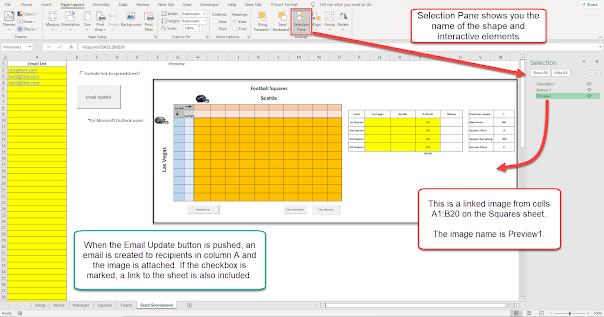
First, I need to have a linked image in my spreadsheet that will be copied to the email. Highlight the area (the cells) that you want to have an image of, in my example the scoreboard of my Super Bowl Squares sheet. Next, I created a new sheet within my workbook where I will collect the emails of all the players. I right click, paste special, linked picture. Select the image. Under page layout go to Selection Pane. Rename the picture “Preview1” or some other descriptive name. This is what the macro will use to identify which picture to attach to the email.

I also want to allow the user the option to include a hyperlink to the Excel workbook in the email or not. To do this, I create a checkbox in Excel by going to the developer tab, insert, ActiveX controls, Check Box.


How to Add an Excel Shape to Outlook Mail by VBA

Attach Image to Email Excel Macro Code

Now it’s time to write the VBA macro that will automatically send an email to all the players with a picture of the latest scoreboard – all at the click of a button!

I’ve previously shared how to send an email from an Excel sheet but this is my first time attaching an image. Below is the full code with my comments explaining what is happening along the way.

Sub SendEmailUpdate()

'Optimize Macro Speed

  Application.ScreenUpdating = False

  Application.EnableEvents = False

  Application.Calculation = xlCalculationManual


'define the workbook, location, and name

Dim Wb1 As Workbook

Set Wb1 = ThisWorkbook


Dim OwnerName As String

OwnerName = Application.UserName


Dim FileLoc As String

FileLoc = Wb1.FullName


Dim WorkbookName As String

WorkbookName = Wb1.Name


'SendEmailTo will count the number of people who the email will be sent to

Dim SendEmailTo As Integer

SendEmailTo = 0


'we will store all the email addresses in one long string then insert them into the TO line of the email later

Dim ToPerson As String

ToPerson = ""


'loop through all players in column A of the Send Scoreboard sheet (up to 100 players max)

Dim x As Integer

For x = 2 To 101


    ' get the emails to fill in the TO line

    If Not IsEmpty(Wb1.Worksheets("Send Scoreboard").Range("A" & x).Value) Then

    ToPerson = Wb1.Worksheets("Send Scoreboard").Range("A" & x) & "; " & ToPerson

    SendEmailTo = SendEmailTo + 1

    Else

    'MsgBox "email is blank"

    'NoSEnd = NoSEnd + 1

    End If


    ' get the emails to fill in the CC line

    'If Not IsEmpty(WB3.Worksheets(1).Range(CCCol & PICRow).Value) Then

    'CCPerson = WB3.Worksheets(1).Range("D" & PICRow) & "; " & CCPerson

    'CCEmail = CCEmail + 1

    'Else

    'End If


Next


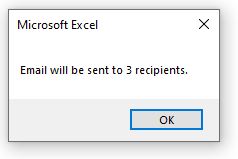
MsgBox "Email will be sent to " & SendEmailTo & " recipients."


how to send email from excel

'get the named Image to attach to the email and copy it

Set oPreview = Wb1.Worksheets("Send Scoreboard").Shapes("Preview1")

oPreview.CopyPicture ' oPreview is now in Clipboard


'launch Outlook

    Dim xOutApp As Object

    Dim xOutMail As Object

    Dim xMailBody As String


    On Error Resume Next


    Set xOutApp = CreateObject("Outlook.Application")

    Set xOutMail = xOutApp.CreateItem(0)


'for html email


If Wb1.Worksheets("Send Scoreboard").CheckBox1.Value = True Then

    'include the link to the spreadsheet

    xMailBody = "Hello everyone! <br><br>" & "The SuperBowl Squares scoreboard has been updated. You can access the sheet by clicking the link below. <br><br>" & _

    "Link: <br><br>" & "<a href=" & Chr(34) & FileLoc & Chr(34) & " > " & WorkbookName & " </a> " & "<br><br>" & _

    "Thanks for playing," & "<br><br>" & OwnerName

Else

    'false, no link

    xMailBody = "Hello everyone! <br><br>" & "The SuperBowl Squares scoreboard has been updated. Please see the below image: <br><br>" & _

    "Thanks for playing," & "<br><br>" & OwnerName

End If


    On Error Resume Next


    With xOutMail

        .To = ToPerson

        '.CC = CCPerson

        .BCC = ""

        .Subject = WorkbookName

        '.Body = xMailBody

        .HTMLBody = xMailBody

        .Display   'or use .Send

 Quick Note: To use the clipboard to copy and paste the picture into email, you need an Outlook mail editor which can deal with the clipboard. Here I use WordEditor for example. The WordEditor property of the Inspector class returns an instance of the Document class from the Word object model which represents the Body of your email: https://docs.microsoft.com/en-us/previous-versions/office/developer/office-2007/dd492012(v=office.12)?redirectedfrom=MSD


        Set oInspector = .GetInspector

        Set oWdDoc = oInspector.WordEditor


        Set oWdContent = oWdDoc.Content

        Set oWdRng = oWdDoc.Paragraphs(1).Range

        'oWdRng.InsertBefore "This is a test"

        oWdRng.InsertParagraphAfter

        oWdRng.InsertParagraphAfter


        Set oWdRng = oWdDoc.Paragraphs(3).Range

        oWdRng.Paste ' paste from oPreview Clipboard


        olFormatHTML = 2

        .BodyFormat = olFormatHTML ' change to HTML


    End With


    On Error GoTo 0


    Set xOutMail = Nothing

    Set xOutApp = Nothing

'---------------------------------------------------------------

ResetSettings:

  'Reset Macro Optimization Settings

    Application.EnableEvents = True

    Application.Calculation = xlCalculationAutomatic

    Application.ScreenUpdating = True

End Sub

Thursday, November 18, 2021

Gift Guide for Excel Users 2021

 The 2021 holiday season is officially upon us here in the United States which means it’s time for my annual gift giving guide. I used to panic every year whenever my spouse, parents, and siblings asked me what I wanted for Christmas. I needed to give them an idea otherwise I’d end up with an ugly sweater or some random gadget I would never use.

So to help alleviate some of my stress I started compiling my own holiday gift guide. It’s kind of like the big toy catalog you used to get as a kid, only this is for adults. I’ve made a list of items I think would be very useful or exciting for your fellow Excel users, sorted by different categories (and yes, this post does contain Amazon affiliate links). Some of these items I already use on a daily basis and others are things that are on my own personal wish list. It's my biggest and best gift guide yet! Enjoy!

Tuesday, March 9, 2021

2021 NFL Draft Game Spreadsheet Template

It’s been one year since the COVID-19 pandemic began. Last year, since March Madness and other sports at the time were cancelled, I started thinking about what other things I could do to fill in the void of not having any March Madness brackets to fill out. The answer came in a suggestion from a reader to create an NFL Draft game spreadsheet. I’ve updated the template for this year.


Inside this template I've listed the top 100 draft prospects according to ESPN. Each draft game player (and the template is currently setup to handle ten players) are randomly assigned ten future NFL players by using a randomize macro. The earlier your players get drafter the better, as the draft position counts for points and the lowest number of points wins!

The random number macro is pretty simple:

'define range of cells for random numbers

Dim Player1 As Range

Set Player1 = Range("AN2:AN101")

Player1.ClearContents

For Each a In Player1

Do

a.Value = (Int((100 * Rnd + 1)))

Loop Until WorksheetFunction.CountIf(Player1, a.Value) < 2

Next


Based on some good user feedback I added the option where each player can now try to predict which team will select their players for additional bonus points. Well, negative bonus points that is, as it subtracts points from your total score (remember, lowest score wins).

See how the Draft Game spreadsheet works in the video below:

Even if you have no interest in the NFL, football, or drafts, you can still learn a bit about Excel by examining the random number generator macro, or the vlookup and sumif formulas used. The scoreboard uses a “rank without ties” formula:

 =(IF(D3<>"",(RANK(D3,$D$3:$D$52)+COUNTIF(D$3:D3,D3)-1),""))

For now, the spreadsheet is setup to handle ten players. To add more, the formulas and macro will need to be modified. If enough people are interested in using this sheet, I will work on making it scalable so it can automatically adjust to the exact number of players.

2021 NFL Draft Game Spreadsheet Template.xlsm 

Let me know if you like this game or if you have any suggestions or questions.


Thursday, February 4, 2021

COVID-19 Vaccine Distribution Tracking Template

Not sure if this is helpful to anyone but I made a COVID-19 Vaccine Distribution Tracking document in Excel. It’s hard to make a spreadsheet that you’re probably not going to use personally yourself. But I tried to envision being in management of a company or nursing home or school that needed to:

 (1) prioritize which employees or residents or teachers should get the vaccine first and

 (2) track which people have actually gotten the vaccine and when.


covid-19 vaccination tracking spreadsheet

What Order to Distribute the Vaccine

The first item I tackled was how do you decide in what order to give out the vaccine. Knowing that supplies are limited, who gets the first dose?

I use a scoring system to decide the priority order: the highest score is first in line to get their shots.

 Here’s how the score is calculated:

  1. Age: the score starts with the person’s age. 30 years old = 30 points. The older population automatically has a higher score.
  2. Age multiplier: I made up a tier system based on age. Based on earlier data I’ve seen, the chance of dying from COVID if you’re 59 years or younger is only around 1% or less, but this jumps up to nearly 20% if you’re 80 or older. In my scoring system, those 60 and older get varying amounts of “bonus” points added to their score depending on what age range tier they fall into.
  3. Priority person: Yeah, you could just rank vaccination order by age and be done with it but I didn’t want age to be the only limiting factor. There are other variables that I wanted to account for. I added the ability for a person to be marked as “high priority”, maybe due to immune deficiency or because they’re a first responder, or pregnant – whatever you want it to be. This adds 11 points to their score to help bump them up in the distribution order. Again, the spreadsheet is easily customizable so you can change the bonus to whatever value fits your needs.
  4. Male or female: This might be controversial, but I added a segment to the scoring where males get a slight score increase over females. From the data I have (and please send me any new information if you think I’m wrong) males have a ~3% higher death rate from COVID than females (women are generally better at fighting off infections I’ve heard) so they get +3 point bonus while females get none. Of course, feel free to change this setting to make it what you want. Give woman 1,000 bonus points and men 0 – it’s up to you and can be easily changed in the spreadsheet.

The total score is calculated by adding up the age, the age tier multiplier, the male/female bonus, and the priority bump. The biggest factor is age, as that is the biggest factor of death rate. While getting the highest score means you’re first in line to get the vaccine, that also means you have the highest risk of dying from COVID.  I then use the RANK function in Excel to rank the individuals from highest to lowest score. There’s your priority list of who gets the vaccine first.


Vaccine Distribution Tracking

The next component, after deciding the vaccination order, is to then track if these people actually got the vaccine. Complicating matters, there are (right now) two different vaccines being distributed in the US requiring two separate doses and the time between doses is different. Each vaccine also has a minimum age requirement that is different so there is a formula to make sure the individual is old enough to get the selected vaccine. If they’re not eligible, meaning you’re too young, your score automatically goes to 0 and I use condition formatting to turn the cells black to show the individual shouldn’t be scheduled to get a shot. Once you get the first dose, enter the date and the spreadsheet will tell you when the earliest is you can get the second dose based on which vaccine you got. Finally, you can quickly see how many of your employees or residents have received the first or second doses of the vaccine.

 Download the spreadsheet here: https://gumroad.com/l/covid-tracker

I’ve been wanting to put my Excel powers to good use rather than just making Super Bowl squares or football related spreadsheets. Not sure the legality of it but if I was in charge of a company with employees working from home I would want to know when it is safe to bring that back into the office. Try it out and let me know what you think!

Friday, January 8, 2021

2021 Super Bowl Squares Spreadsheet – the only template you’ll ever need

I’ve been creating Super Bowl Squares spreadsheets for ten years now. Every January I’d update the template and add more sheets with more ways to play. It’s gotten to the point where it’s a bit of a mess when opening the workbook and seeing all these different colored tabs with similar yet different names. It was getting annoying dealing with multiple game boards, multiple score managers, etc. and probably very confusing to new users. 

The old version of the Super Bowl Squares template

I’ve had an idea for streamlining and improving the grid game spreadsheet for over two years but just finally had enough time and energy to work on it before the actual Super Bowl. It’s taken many hours of work setting up the macros and testing all of the conditions but it’s finally ready: the new and improved Super Bowl Squares template is here!

super bowl pool download


When you first open the template you’ll notice the big changes right off the bat. You’re met with a simple setup screen where the user will decide how to play the game. The sheet automatically updates the Super Bowl boxes and the leaderboard to reflect only the version of the game you want to play. 

printable super bowl squares in excel


I used to have to update the sheet every year by inputting the teams and their helmets. This time, all the teams and helmets are in one of the sheets. Simply use the drop down lists in the Squares sheet to select the team from the list (broken up by AFC and NFC) and their helmets will update automatically! 

Watch me demo the new Super Bowl board in the video below:


As you can see, the new sheet allows more ways to play but is simple and easy to setup and is automated as much as possible. 


Even if you’re not into football, you can still use the template to learn how to do these Excel tricks:
  • Lookup pictures based on cell values
  • Generate random numbers
  • Use NameManager
  • Create drop down lists
  • Use index and match formulas
If you dissect the macros in the spreadsheet you’ll learn how to:
  • Hide rows and columns
  • Hide or unhide sheets
  • Generate random numbers between 0 and 9 with no duplicates
  • How to hide command buttons by VBA
  • How to change cell fill color
Update 1-19-2021

I've updated the spreadsheet again. There are now 54 ways to play within one slick spreadsheet. I added options to play by quarters, every minute, or every time the score changes. Watch me preview the update below. Also be sure to subscribe to my email list and YouTube channel as I'll be showing off all the tricks and tips I used to make this spreadsheet work.

*Intended for PC/Microsoft Office/Excel. I don't think it will work in Mac Numbers*


Get it here (enter a 0 into the price box then input an email address):


Let me know what you think. I’d love to hear from you. Is this version as much of an upgrade and easy to use as I think it is? I welcome any and all questions, comments, suggestions, cuss words, and compliments. Let me know using the comments below or via email. Enjoy playing Super Bowl Squares!

Tuesday, May 12, 2020

Unique Excel Uses: Drum Machine

As someone who was a drummer in high school and college, this might be my favorite unique use of Excel yet. Dylan Tallchief has made an actual drum machine in an Excel spreadsheet. How cool is this?!
drum machine excel spreadsheet


Who knew we'd be able to make music in Excel? It really is a miracle program. Watch the video below to see the drum machine in action.


The part of the video where Dylan gets into the description of getting the VBA code to work is especially interesting to me.

sleepTime = 60 / Range("C23").Value * 1000 / 4   '2 will need to change to 4 when i add more resolution
swingL = sleepTime + ((sleepTime / 5) * Range("C26"))
swingS = sleepTime - ((sleepTime / 5) * Range("C26"))

Below is a video of myself messing around with the sheet and showing you how to change the beats per minute (BPM aka tempo) or how to add a swing groove to the sequence.


This is one template you'll definitely want to try and play around with yourself. Download the drum machine spreadsheet for yourself using the link in Dylan's video.

I'll have to add drum machine to my list of unique uses for Microsoft Excel spreadsheets. If you have your own unique use of Excel please do let me know!

Monday, December 9, 2019

2019 College Football Bowl Prediction Pool Manager with CFB Playoff Bracket

The college football conference championships were played this past weekend which means the 2019 NCAA college football bowl season is here again! Therefore, it’s time to make your picks and predictions about who you think will win each bowl game. One of the best times of the holiday season (other than giving and receiving gifts) is gathering around the TV and rooting for your Alma mater or hometown football team. This year has the added bonus of not just single bowl games but the sixthyear of a four team playoff to determine the national champion.

cfb bowl sheet


Features for this year's bowl prediction pool over the previous college football bowl pool manager spreadsheets include the following:
  • Easy method to make each bowl game worth a different point value, so the national championship game and semi-finals can be worth more points, or however you want to customize it.
  • Updated leaderboard tab with new stats
  • Separate entry sheet to pass out to participants or co-workers that can be imported automatically by a built-in macro
  • Complete NCAA college football bowl schedule with game times and TV stations
  • New stat sheet to track each conference's record during bowl season (Go Big Ten! Go MAC!)
  • The bowl prediction sheets include the football helmet designs for every team (taken from the 2017 college football helmet schedule spreadsheet), their win-loss record, and the logo for all bowl games. I added the helmets so those players who aren't big college football fans can pick a winner based on their favorite helmet design!
  • Download the CFP Pool Manager and Single Entry Form here.


How to Enter Player's Picks


There are now three ways to add participant’s data:
  • Manual entry using the drop down lists
  • Copy and paste from the selection sheet to the bowl manager
  • Use the import macro to automatically import a player’s data into the pool manager by way of a macro
Below is an older video of how to use the bowl pool manager spreadsheet.


The beauty of this football bowl manager is you will not have to change or modify any formulas yourself (unless you want to of course). Instructions are included within the Excel file and shows you exactly how to add more players (either manually or by using the button that is linked to a macro). If you enjoy using this sheet football pool manager I would really appreciate it if you would share it with friends, family, and coworkers.

I am working a version where you can add confidence picks by ranking the bowls in order of how confidence you are with your picks. I did one for 2017 but have not updated 2019's for this yet. Let me know in the comments or via email if this is something you would be interested in.

Here are some of my Bowl Game Observations that may interest only me...
  • Only bowl eligible team to not make a bowl game? My University of Toledo Rockets.
  • Most lopsided records? 6-6 Washington State vs 10-2 Air Force. Next you have 7-5 Washington vs 12-1 Boise State
  • There are now 6 independent teams not residing in a conference, 3 of which made bowl games. Can you name them?
  • Matchup with most combined wins: 13-0 OSU vs 13-0 Clemson
  • The ACC leads all conferences with 10 teams represented, followed by the Big Ten and SEC with 9 apiece.
  • There are no teams with losing records this year. There are 13 teams with 6-6 records, though there are no 6-6 vs 6-6 bowl match-ups
  • There are 22 teams with 10 wins or more

Please let me know if you have any questions, comments, find any bugs, or have any suggestions for improvement. I love that people are using this Bowl Prediction Game to help raise money for charity, that's so awesome to hear! What team are you rooting for?

Monday, March 25, 2019

How to hide checkboxes and rows in Excel with VBA

I recently received a question about how to hide or collapse a row if a checkbox in that row wasn’t checked. There are a lot of good lessons in this example. When you’re stuck on a problem, the best thing to do is to break it down into smaller problems and solve each one at a time. Let's do it!


How to Insert Checkboxes in Excel


The first lesson is how to add a checkbox to an Excel sheet. Go to Developer tab then Insert. There are two types of checkboxes: Form Control and ActiveX Control. For this example, we are going to use Form Control checkboxes because you can link these directly to a cell.


How to link a checkbox to a cell


The next lesson is how to assign a checkbox to a cell. We’re going to do this to help with hiding the rows later. When you create the first Form Control checkbox in cell A2, in the formula bar type “=$B$2” to assign B2 to the checkbox. Now, if the checkbox is checked B2 should read TRUE, if not selected it should say FALSE.

**The one downside to this method is if you need 100 checkboxes it could take some time to manually assign each checkbox to a cell. There is probably a way to automate this task, however, for simplicity of this example we’re going to say we only need five checkboxes and assign them all manually.**

Now your example sheet should look like this:


How to hide rows based on a cell’s value in VBA

The hiding of all the checkboxes and rows will be done automatically with a VBA macro. If you’re new to macros see this gettingstarted guide. 

Again, break it down into smaller problems. First, let’s figure out how to hide rows based on a condition, the TRUE or FALSE value in our helper column.

Define the first row that contains data we might want to hide:
BeginRow = 2

Define the last row that might contain data we want to hide.
EndRow = 5

Define the column number of our helper info, the column with the true or false values.
ChkCol = 2

Loop through the range of rows we just defined and if the value of the cell in our helper column is false, then hide that entire row:

    For RowCnt = BeginRow To EndRow
        If Cells(RowCnt, ChkCol).Value = False Then
            Cells(RowCnt, ChkCol).EntireRow.Hidden = True
        End If
    Next RowCnt

How to hide checkboxes automatically with macro

Dim CB As Shape
Dim sh As Worksheet

Set sh = ActiveSheet

We need to loop through all the shapes in the active sheet, see if they are the form control type of Check Box:

For Each CB In sh.Shapes
  If CB.Type = msoFormControl Then
    If CB.FormControlType = xlCheckBox Then
      'MsgBox CB.Name, vbOKOnly
     
      'if check box is checked, keep it visible, otherwise, hide it
      If CB.OLEFormat.Object.Value = 1 Then
        CB.OLEFormat.Object.Visible = True
        Else
        CB.OLEFormat.Object.Visible = False
End If
     
    End If
  End If
Next CB

Full Macro to Hide Rows and Checkboxes

Here’s the final code that hides entire rows based on checkbox is checked or not.

Sub Hide_checkboxes()

Dim CB As Shape
Dim sh As Worksheet

Set sh = ActiveSheet
For Each CB In sh.Shapes
  If CB.Type = msoFormControl Then
    If CB.FormControlType = xlCheckBox Then
      'MsgBox CB.Name, vbOKOnly
     
      'if check box is checked, keep it visible, otherwise, hide it
      If CB.OLEFormat.Object.Value = 1 Then
        CB.OLEFormat.Object.Visible = True
        Else
        CB.OLEFormat.Object.Visible = False
End If
     
    End If
  End If
Next CB

'now hide the rows
    BeginRow = 2
    EndRow = 5
    ChkCol = 2

    For RowCnt = BeginRow To EndRow
        If Cells(RowCnt, ChkCol).Value = False Then
            Cells(RowCnt, ChkCol).EntireRow.Hidden = True
        End If
    Next RowCnt


End Sub

How to unhide rows and checkboxes in Excel

Conversely, I also made a code to reset everything and unhide all checkboxes and unhide all rows:

Sub Unhide_checkboxes()

Dim CB As Shape
Dim sh As Worksheet

Set sh = ActiveSheet
For Each CB In sh.Shapes
  If CB.Type = msoFormControl Then
    If CB.FormControlType = xlCheckBox Then
      'MsgBox CB.Name, vbOKOnly
     
      'if check box is checked, keep it visible, otherwise, hide it
      If CB.OLEFormat.Object.Value = 1 Then
        CB.OLEFormat.Object.Visible = True
        Else
        CB.OLEFormat.Object.Visible = True
End If
     
    End If
  End If
Next CB

'now hide the rows
    BeginRow = 1
    EndRow = 5
    ChkCol = 2

    For RowCnt = BeginRow To EndRow
        If Cells(RowCnt, ChkCol).Value = False Then
            Cells(RowCnt, ChkCol).EntireRow.Hidden = False
        End If
    Next RowCnt
   
End Sub

How to insert a button and link to a macro

Finally, for ease of use we can add two buttons to our sheet to run each one of the macros. Go to Developer tab, insert command button.


Watch the video below to see how the macro to hide checkboxes and rows works.


As you can see, there is much to glean just from this one example.