Showing posts with label Applications. Show all posts

Sunday, January 8, 2023

Using OpenAI's ChatGPT to Update My Year in Pixels Excel Template

I've been seeing more and more videos on TikTok about this mysterious new artificial intelligence program called ChatGPT. People are saying it will eventually replace Google search. But what really got my attention was a demonstration of ChatGPT writing VBA macros for Microsoft Excel. Now I knew I had to try it for myself. 

I made a Year in Pixels Excel template to track my daily mood back in 2018 but haven't updated it lately. Since it's the start of a new year, I recently received some new comments and questions about how to use and modify the spreadsheet so I figured now would be a great time to update it and add a few new features. Then I had an idea - why don't I use this opportunity to update my mood tracking Excel template to try out ChatGPT? Let's give it a go!


How to have cell fill color conditional formatting change based on the color of another cell?

The request from a user that got me thinking was "how to easily change the colors in my year in pixels sheet?" An experienced Excel user could probably ascertain the colors are applied by conditional formatting formula rules. However, for users who are not Excel savvy, it's not very obvious and there should be an easier way to change the colors. As far as I know, there is none, or at least no easy way in my current version of Excel, to have the fill color in the conditional formatting reference another cell's color. So instead, I will have a macro update the conditional formatting rules at the click of a button. Let's jump over to ChatGPT.

How does ChatGPT work?

Here's the answer after asking it directly: 

GPT (Generative Pre-trained Transformer) is a type of language model developed by OpenAI that uses a transformer neural network architecture to generate text. GPT is trained on a large dataset of text and uses this training to generate new text that is similar in style and content to the training data.

ChatGPT is a variant of GPT that has been fine-tuned on a specific task, such as having conversations with humans. To fine-tune GPT for this task, ChatGPT is trained on a large dataset of conversation data and learns to predict the next word in a conversation based on the words that came before it.

When you input a message to ChatGPT, it processes the message and uses its knowledge of language and conversation patterns to generate a response. It does this by predicting the next word in the conversation based on the input it has received and the context of the conversation so far. The output of ChatGPT is then a response that is generated based on this prediction.

One thing to keep in mind right off the bat: ChatGPT is not always right. It says it right there on the main page under limitations: may occasionally generate incorrect information; may occasionally produce harmful instructions.
For example, I asked "list the ten tallest roller coasters in the world" which should be fairly easy and instead it produces a list that is incorrect and doesn't even make sense.


Not a great start but let's see how it does creating a macro from scratch.

Creating Custom VBA Macros Automatically with ChatGPT

I wasn't sure how specific I needed to be so I decided to err on the side of caution, plus I thought the more detailed I am the less modification I'll probably need to do later. Now I ask ChatGPT: "create a vba macro to make a new conditional formatting rule where range is C4 to N34, if cell value = 5 then change the fill color to the same color as in cell P12." Then it began typing and my jaw dropped.

I copied and pasted the code into Excel VBA editor and it worked! One thing I forgot is this macro will just add new rules applied to the same range. I need to delete all the existing formatting rules before adding new ones, so I ask ChapGPT:


I added the above code to the earlier response and linked it to a newly added button on my sheet. Now a user can change the fill color of a cell, click the button, and the fill colors update automatically to match.

If you want to see all this play out in real time, watch the video I recorded below:

Thoughts on the Future of ChatGPT

It's awesome that it doesn't just spit out the code, but it also suggests how you might need to modify it AND tells you how to run the macro as well. Even though I've only asked it to make simple macros, I already see how this program could save a lot of time.

I'm not done experimenting but so far ChatGPT seems like a much better option over Recoding macros or Google searches that might take you a few tries to find exactly what you're looking for. Especially when you can get custom code on the fly. On one hand, I feel a little obsolete, but on the other I also don't think ChatGPT will completely be replacing programmers just yet as you can see I still had to understand the code and modify it to fit my exact needs.


Download my Year in Pixels template for free here and try it for yourself. Open the macro editor to view the final codes written by ChatGPT.

Monday, March 28, 2022

Free Meeting Scheduling Excel Template

How often do you ask friends, family, or coworkers which day is the best to get together? Whether it’s a meeting, party, trip, or some other occasion I find myself in these situations all the time. There are several apps and online calendars available to help you coordinate which day works for everyone involved. I used to use a site called Doodle all the time.  The problem with these services is they are not always free, they’re constantly changing and you have to keep relearning how to use them, you have to make an online account, and so on. So I did what I always do – I decided to make an Excel template to determine which day works best for meetings and events!

I used a lot of the same concepts and macro code from my Super Bowl Squares spreadsheet. When you first open the spreadsheet you are greeted by a simple, clean setup page. Here you’ll manually input the number of participants, meeting subject and description.

Next, you’ll enter the start and end dates of the days you want the participants to choose from. It’s very important that these two cells ONLY contain dates. To restrict a user to only being able to enter a date in a cell, go to Data > Data Validation. Under Allow select Date. Be sure to enter a custom error message so if a user makes a mistake they understand what needs to be entered.

When the user clicks Generate Schedule the Schedule sheet is unhidden. The schedule can handle up to 100 participants and up to 365 days. However, you probably won’t need all that so the macro will automatically hide all the rows and columns not needed to make it easy for the user to input their information.


A lot of good Excel tips can be gleaned from examining the event timing spreadsheet. Here's a quick summary of what can be learned by dissecting this free Excel template:
  • How to add and use Option buttons
  • How to use data validation to restrict entry in a cell to a date
  • How to use data validation to restrict entry in a cell to an email address
  • How to get the day of the week from a date
  • How to use command buttons and assign specific macros to them
  • How to send emails from Excel with hyperlinks
  • How to use a formula to show only weekends in Excel
  • How to use conditional formatting to change cell color based on cell value
  • How to hide command buttons by macro
Download the Meeting Scheduler Template here.

Watch How to Coordinate Meetings with Excel

If you want to see how this spreadsheet works and some tips like how to limit a cell where a user can only input a date then watch the video below:


Try it out and let me know if you think it’s a legitimate replacement for Doodle, Calendly or whatever meeting scheduling apps you currently use. 

Monday, May 19, 2014

20 Unique Uses of Microsoft Excel Spreadsheets

Microsoft Excel is one of the most versatile and user friendly programs around. It’s the Swiss Army Knife of computer software. Even though Excel was originally designed for use in the business world, helping people easily manage data of all forms, some Excel jocks also use it for a variety of other tasks, many you might think are quite unusual. From designing roller coaster, to playing video games, to organization, Excel can do it all. Listed below are some of the most unique uses of Excel that you might not have thought of.

1. Role Playing Video Game


I've seen some very unique Excel uses in the past but this just might be the best (or most fun) application: Excel as a video game! Cary Walkin, a Canadian accountant, has transformed a Microsoft Excel spreadsheet into a playable video game. Arena.xlsm is a turn-based fantasy role playing game where the goal is to collect loot to become more powerful all the while warding off increasingly difficult monsters. In fact, there are currently over 2000 possible enemies with different AI abilities. Sounds complex! Remarkably, it only took Cary four months to completely program this game using VBA macros.

unique excel use video game


Source: http://excelspreadsheetshelp.blogspot.com/2013/04/unique-excel-uses-video-game.html

2. 3D Graphics Engine


Some people take Excel programming to the extreme. One such example is using Microsoft Excel as a 3D graphics engine. The program doesn't exploit any hidden code whatsoever – the feat was done using completely documented features installed as standard on a default Excel build. It’s really quite incredible! 

excel 3d graphics engine

Source: http://excelspreadsheetshelp.blogspot.com/2011/04/excel-as-3d-graphics-game-engine.html

3. Weight Tracker


Want to manage your weight loss goals easily? Excel is a great way to begin doing that. Not only can you keep a log of your daily weight fluctuations, but you can easily build a chart that captures all this data and gives you an idea of the direction that you’re headed in. If you want to get even more specific, you can easily add a goal weight (say 20lbs below your current weight in six months) and create a trend line between the two dates. This way you know that if you are below the line, then you are on track to reach your goal. 

weight tracker in excel

Source: http://office.microsoft.com/en-us/templates/measurements-weight-tracker-TC001168403.aspx 

4. Simulate Life 


Conway’s game of life is one of the first programming projects that most people try, as it’s a great way to learn how to design a simulation from the ground-up. To start, you set up a few blocks, and then run a simulation to determine whether those blocks, live, die, or reproduce, according to the following rules:

  1. Any live cell with fewer than two neighbors will die of loneliness 
  2. Any live cell with two or three neighbors will survive 
  3. Any live cell with more than three neighbors dies, because it’s too crowded 
  4. Any empty cell with exactly three live neighbors will become a live cell  (Source: Wikipedia)
With some intermediate knowledge of Visual Basic, you can easily make this game in Excel, and many people have done so before. If you search online, you can find thousands of sample setups that will do a number of interesting things when you run the simulation.

game of life in excel

Source: http://dailydoseofexcel.com/archives/2011/04/06/conways-game-of-life-simulation-in-excel/ 

 5. Digital Flash Cards for Studying 


 Are you trying to learn a subject? Creating flash cards is one way that people have been learning for generations, but what if you could make it easier? By creating a ‘bank’ of questions on one worksheet, you can instruct Excel to quiz you by using Visual Basic to randomly look up one of the questions and display it in a “Question:” cell. If you want to get more advanced, you can build a button that will run the macro when it is clicked, and have another button to display the answer.


Source: http://www.youtube.com/watch?v=WhmplmELrfs

 6. Play Monopoly 


Moving even further into the Excel gaming realm, you could even build board games like Monopoly into Excel. This is easier than you think, since Excel’s grid structure can be modified to make the Monopoly board easily, and it has even been done online. Even though it might not replace the real thing, programming Excel to play Monopoly will help you learn how to really build a game in Visual Basic, and you can use that experience to help build things that are more useful in everyday life.

monopoly in excel

Source: https://www.dropbox.com/s/rps9m00rlfkbavf/Monopoly_v5.xlsm

 7. Create Mockups 


 Are you building a website, designing a store, or building a home? If so, then you can easily use Excel to build a mock-up of what you want it to look like. This is incredibly easy to do by highlighting cells and either using fill colors or borders to designate certain shapes and edges, so that you can get an idea of what the finished product will look like. If you are planning on working with a designer to build a website, you can easily snap a picture of the image and email it to him, or just send him the Excel document and let him get to work.

excel mockup creator

Source: http://chandoo.org/wp/2010/06/23/ui-prototyping-in-excel/

 8. Plan A Wedding 


Worried that your mother-in-law is going to be sitting next to her least favorite cousin? Want to make sure that your guest list includes everyone? This won’t be a problem if you plan your wedding in Excel. Use it to keep track of costs, manage guest lists, and even create a seating chart using some of the mockup ideas that we discussed above.

wedding planning spreadsheet

Source: http://www.myspreadsheetlab.com/2013/05/free-excel-template-wedding-planner/

 9. eBook Publishing 


Most authors begin writing their novels in a word processor like Microsoft Excel but if you’re writing non-fiction and going to have the same style and format of pages over and over you can begin writing your book inside Excel. When your data is ready, use a macro to export each row of information in your Excel to individual pages in Word. Add the front matter and you've got a hundred page book that just needs editing and a cover page.


 Source: http://excelspreadsheetshelp.blogspot.com/2014/04/unique-excel-uses-writing-book.html

 10. Graphic Design 


Did you know that Excel could be used to make incredible paintings? There is an entire group of Excel users that does nothing else but designing incredible pictures in Excel. A quick visit to YouTube will even let you see some of these masters in action. If you’ve been thinking about a creative outlet for all of your Excel knowledge, then painting might just be in the cards (or boxes in this case). All you need to start painting in Excel is the program itself. By filling in the boxes with different colors (make sure to resize them so that they’re square first), you can quickly begin drawing in a way that you might never have expected when first opening up the program.


Source: http://www.youtube.com/watch?v=4YG_WWZYqUs

11. Scrabble Scoring System


Not interested in wasting time adding up scores during your heated Scrabble game? Build a scoring chart in Excel and you can quickly SUM() all of the scores from each round to keep a running total of who’s in first and who needs to work on their vocabulary.


Source: http://www.calgary374.org/scoresheets/s03/sheet023.xls

12. Wine Inventory 


If you’re a wine connoisseur, then knowing the bottles of wine in your cellar, and tracking your wine ratings is incredibly important to you. Excel can not only help you create a quick database of wine listings, but it can also tell you just how many bottles of wine are left in your collection. You can even add tags to your database to separate the bottles that are for daily drinking and the ones that are for special occasions, so that you know when it’s time to head down to the local store and restock your collection.


Source: http://www.wine-lovers-page.com/rosswine.shtml

 13. Website Creation 


Excel can be used to help you create a website. Use a macro to convert a row or column of data into html code exported to a .txt or .doc file. If you’re a Wordpress user copy and paste the html into a new page and publish. This is how I created the Observation Wheel Directory to track the world’s largest Ferris wheels. If you want to start your own website, download our website creation checklist for free.


Source: http://excelspreadsheetshelp.blogspot.com/2013/03/macro-to-export-hyperlinks-from-excel.html

14. Energy Tracking 


If you work in IT, you’ll know that energy costs can really add up. Tracking the number of computers that are on at any given time in Excel will allow you to fully understand your electricity costs and work to reduce them over time by using scheduled shutdowns. While this might not be for someone with only one or two computers, the money that’s saved by turning off thousands of computers for an extra hour every day will pay dividends for years to come. If you are more interested in tracking your home energy use, you can use things like Kill-a-watt meters to calculate the watts being used to see where you are spending the most money. Shutting some of those ‘energy hogs’ down or unplugging them completely can save you hundreds of dollars a year.


Source: http://valueofsimple.com/spreadsheet-spotlight-intro-home-energy-audit-and-simple-tracking/

15. Play Pac Man 


That's right, someone actually sat down and made Pac-man run in Excel (called Pacelman). All actions are created by changing the fill color of each cell in the spreadsheet.


Source: http://www.geocities.jp/nchikada/pac/

16. Design a Roller Coaster 


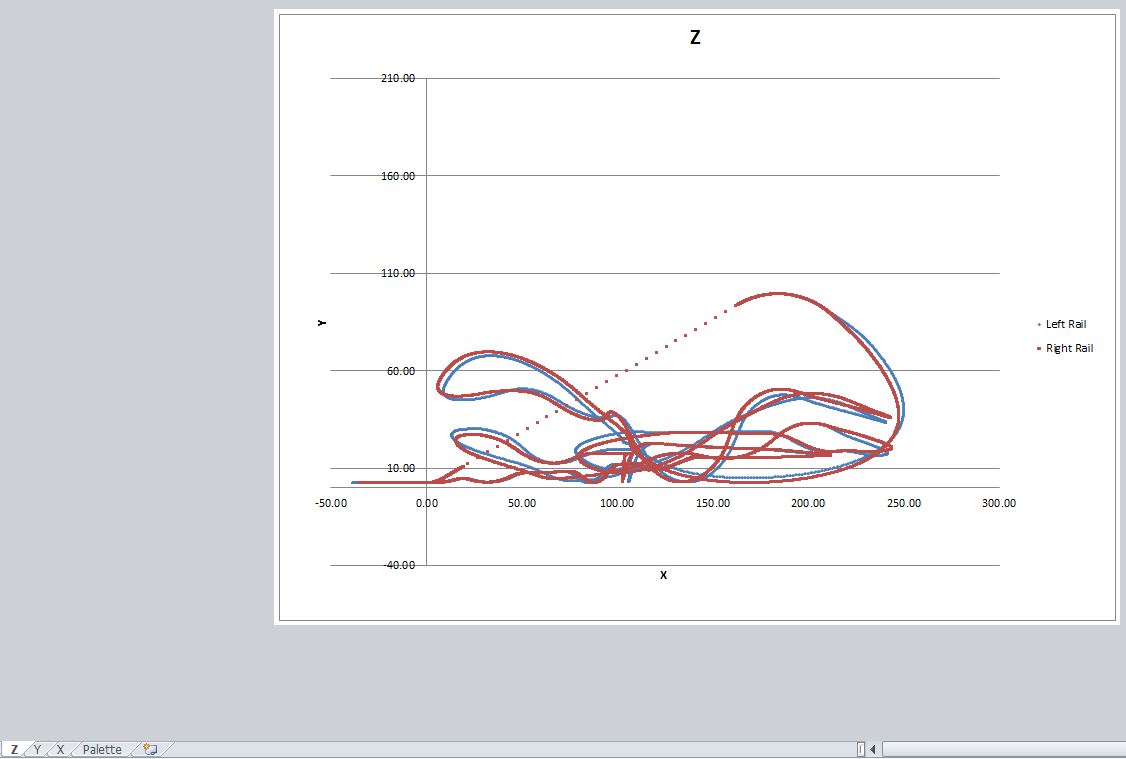
Here’s a very thrilling example of what Excel can be used for. Travis Rothbloom is a mechanical engineer and aspiring roller coaster designer. He decided to design a roller coaster for a school project using a combination of Excel and MatLAB. This massive spreadsheet with roller coaster physics formulas contains 8500 rows by 50 columns of data! I've heard real roller coaster designers like the Gravity Group use Excel too.


Source: http://excelspreadsheetshelp.blogspot.com/2012/09/unique-excel-uses-designing-roller.html


17. Apartment Comparison 


Apartment Comparison is another one of my custom spreadsheet creations to help solve a recurring problem. I had to move 16 times over a five year period due to moving back and forth between a semester of school and a semester of co-op. It got tiring always trying to figure out what apartment was the best one for me, so I developed this template to help me out.


 Source: http://www.apartmenthunterhq.com

18. Horseshoe League


I've played horseshoes on occasion for fun but I never knew there was a horsehoe league complete with scoring and standings until a reader asked for help with a template to track everything. It's probably the most unique sports related template out of all the ones I've worked on or created. Horseshoes can be an individual or team sport, similar to bowling.


Source: http://excelspreadsheetshelp.blogspot.com/2012/05/sports-league-excel-spreadsheet.html

19. Newborn Checklist for New Parents 


Excel is great for keeping To-Do lists organized. One unique one I personally created was the newborn checklist for new parents. With a new baby on the way last year, there were so many things to do before the big day and it was hard keeping everything organized. The checklist I created in Excel enabled me to track what was done and if it was assigned to my wife or my responsibility (that way she couldn't yell at me if it didn't get done because it was assigned to her).


Source: http://excelspreadsheetshelp.blogspot.com/2013/10/newborn-checklist-for-new-parents.html

20. Pilot Training


Some pilots have starting using Excel to provide training for pilots around the world on planes ranging from regional jets to Boeing 747s. Diagrams of all the switches and indicators are mocked up in an Excel worksheet. The clever spreadsheets utilize comment boxes, which within cells provide pop-up details of what the lights and indicators do and what their different states mean. It's a simple learning aid that can run on just about any computer and requires only an Excel viewer application to use. Amazing!


Source: http://www.redtriangle.com/


Conclusion 


Even though you might spend most of your time using Excel to make lists, crunch numbers, and accomplish general tasks, that doesn't mean that there aren't other uses for this incredible program. Try out some of the ideas above and take your Excel skills to the next level! I hope this post has inspired you to create an awesome spreadsheet. If you have a unique or unusual use of Excel I would love to hear about it. 

Monday, April 7, 2014

Unique Excel Uses: Writing a Book

If you haven’t been able to tell by now I’m a huge fan of amusement parks and roller coasters. Huge fan is probably an understatement. I’ve noticed top ten type lists are hugely popular right now (which is why I created the top 11 Excel YouTube channels and top Excel shortcuts) so I decided to write a short ebook about the top 50 most terrifying roller coasters ever built. My idea was to list each coaster with some stats then share my reasoning for why it’s so terrifying. Since I wanted the same format for all fifty coasters I knew I would be doing a lot of copy and pasting. That’s when I decided to put my Excel spreadsheet and programmings skills to use.

Where many authors begin writing in Microsoft Word or some other Word processor I started in Microsoft Excel. Pictured below is the table I created with all the relevant stats:


After data is entered for all fifty coaster I run a macro that export the information to Microsoft Word in the format I wrote into the code. An example of one of the coaster is shown below:

CRYSTAL BEACH CYCLONE
Known for: Nurse in the station
Park: Crystal Beach
Location: Canada
Type: Wood
Opened: 1926
Closed: 1946
Designer/Manufacturer: Harry G. Traver
Height (ft.): 96
Drop (ft.): 90
Speed (mph): 60
Video: http://www.youtube.com/watch?v=9hMveMFnigM
The Crystal Beach Cyclone is considered to be the most extreme roller coaster ever built. The mother of all roller coasters spawned in 1927 at Crystal Beach Amusement Park in Ontario, Canada. For over twenty years this demonic creation terrorized over five million victims, dragging them through its demented dives, twisted turns, and wickedly warped trackage. While its ninety-six foot tall lift hill may be relatively small by today’s standards the Cyclone made up for lack of height with rapid fire transitions and perverted elements, such as eighty-degree banked turns, a high speed figure-eight, jazz-track (trick track), and tiny one foot bunny hops. Although this terrifying trip lasted only around forty seconds after cresting the lift there was almost no straight track to be found and the unrelenting pace made the ride so severe it was probably more than enough for most riders.


The macro outputs all fifty coasters. Now, all I have to do is add the front matter (title, index, copyright information, dedication, etc.), resources, about the author, and insert my pictures and it’s done. From concept to publication took a total of four weeks, working all in my spare time (so to those of you who think you don't have time or the skill to write an ebook, I think you can do it too)! Check out the completed book on Amazon (borrow for free if you're a Prime member).
This same technique can be applied towards websites, blogs, papers, and a great number of other tasks. What unique projects have you done in Excel?

Sunday, August 25, 2013

Apartment Comparison Spreadsheet Update


I’ve revamped my Apartment Comparison Spreadsheet website and the big news is you can now download the Apartment Search Spreadsheet for free! Signup for the Apartment Search Tips newsletter and you’ll immediately receive the link to download my apartment hunting tool. You can unsubscribe from the email list at anytime but if you’re looking for an apartment I recommend you don’t unsubscribe so you can get my valuable tips, like how to potentially earn $100 for signing a new lease!


apartment comparison spreadsheet update
The Apartment Search Spreadsheet can  also be used as an apartment search checklist as I listed almost every criteria you could think of for what you would like in a new apartment. Enter the data for every apartment you are looking at. Next, you’ll set an importance factor for several categories. What’s more important to you - size of the rooms or distance to work? The spreadsheet uses your inputs to give each apartment a score and you can easily see which apartment has the highest score and is thus the best choice for you.


Please note, the free preview version of the spresdsheet for apartment comparison only allows you to compare two apartments. You'll have to purchase the PRO version to compare more than two apartments, but it also comes with a lot of extra resources you might enjoy. Check it out here. And please do let me know if you find this tool at all useful or if you think it would be great if there were something like this for another item, like to compare houses or cars.

Tuesday, April 9, 2013

My Excel 2016 Wishlist

Today, I started thinking about my Excel 2016 wishlist. Microsoft Excel has been updated every three years beginning in 2007. Knowing this, we can only assume the next edition of Excel will come out in three years from now in 2016. The latest update, Excel 2013, includes new tools like FlashFill, PowerView, Timeline Slicer, and over 50 new functions. Don’t get me wrong, Excel is a very powerful tool but it’s not completely perfect yet.
excel 2016 logo

Thus, it’s never too early to start thinking about the next edition of Excel and what improvements can be made. There are a number of features that I think would make creating spreadsheets even easier. A couple of simple improvements could help save users even more time. Here are some of the things I’d like to see in Excel 2016:


  • A FIXTODAY() function that holds the date of the day the formula was first created or entered into the spreadsheet.
  • I don’t know if this will ever be possible outside of Google Docs but allowing multiple users to edit the same document at the same time would be wonderful.This would eliminate all those extra copies of spreadsheets floating around.  This option is already available!
  • I don’t know why you can’t do this already but it would be great to be able to unhide multiple worksheets at the same time. Currently, you can only unhide one sheet at a time which can be a major headache and quite inconvenient.
  • Along this same line, I would like the ability to unprotect multiple sheets at once. Something like a global password may be the solution.
  • An easy way to be able to see exact revision history.
  • More options when protecting a sheet, like being able to use CustomViews.
  • More text manipulation functions and options.

That’s what I think. What about you? What would you like to see in future versions of Excel? What’s on your Excel 2016 wishlist? Please let me know in the comments below. Who knows, maybe Microsoft will even be taking notes!

Friday, March 1, 2013

Download the Apartment Comparison Android App

apartment comparison
To the fans of my wildly popular Apartment Search Spreadsheet, I just wanted to quickly let you know I’ve just released a brand new Android application called Apartment Comparison. It’s very similar to the spreadsheet but now in an easy to use format for mobile phones and tablets.The application is easy to use and comes with instructions.

The intended use of the app is to compare apartments by giving an apartment score to each. The score is computed when the user sets the importance of several key categories, such as location, community, utilities, etc. A bubble chart is then displayed for you to compare apartment score to monthly cost. The apartment with the highest cost might also cost twice as much as any other apartment, so maybe it is better to choose the second highest score because the cost is much less.

This apartment app can also be used as a simple apartments search checklist. There are 65 input fields divided up into seven different categories. To compare apartments you must first enter information for each apartment using the input screen. Data is entered in one of three forms: numerical keypad (for monthly expenses, move-in fees, etc.), Yes/No buttons (for things like if a microwave if present or not), or a rating from 1 to 10 (for things like your evaluation of the local school district).  I strongly believe we have literally thought of anything and everything you could wish to know about an apartment! 


I aim to make Apartment Comparison the best apartment hunting app available so if you do download it I would appreciate it if you rated the application and gave me any feedback or suggestions for improvements.
apartment comparison app