Choose between American or Decimal odds by using a drop down list on the first sheet. All bets need to use the same odds type and you shouldn't change it once set.
What's the difference between American and Decimal odds?
Decimal odds (European odds) represent the potential return of a bet, including the original stake, as a multiple of the stake. The odds are presented as a single number, usually with two decimal places. Example: 2.5
American odds, also known as moneyline odds, are a popular format for expressing the likelihood of a particular outcome in sports betting, especially in the United States. American odds can be positive or negative numbers and indicate how much profit a bettor would make on a $100 wager if the bet is successful. They provide a straightforward way for bettors to understand the potential profit or risk associated with a particular bet. Example: -205, +155
Change to Macro Enabled Worksheet
The format of the bet tracking spreadsheet has been changed from .xlsx to .xlsm as I've added a few simple macros.
Click the "Add New Bet" button to input a new bet. Previously you had to scroll to the bottom of the Bet Tracker sheet to add a new bet and potentially drag down all formulas to track the stats. Now the newest bet will always be at the top and you won't have to manually manipulate any formulas.
If you want to clear all your bets there is a button that will do that but be careful - the action cannot be undone.
I don't think macros will work on MAC/iOS/APPLE devices, so you might have to manually drag down the formulas.
Cash Out and Voided Bets can now be tracked
The ability to Cash Out has also been added as well as void or push bets can now be tracked. If you cash out, enter the value you cashed out for in column K, otherwise leave column K blank. If you want to track void or cancelled bets you can select Void from the drop down then delete your wager amount and leave it blank since you get that money back.
How to Transfer Information From Old Versions
In the Bet Tracker sheet, I think columns A through K should be the same so you can copy and paste those, then drag down the formulas in row 2 for columns M-Y.
Let me know what you think about the improvements to the Sports Bet Tracking Spreadsheet in the comments below! And as always, I valuable your feedback if you have ideas for even more improvements.
If you're looking for 2024 March Madness Brackets, no, I won't be posting any here or making my own. Once again, I will be using the best March Madness brackets in Excel, created by David Tyler (and I will continue to use his until he decides to no longer update them). They’re very polished and easy to use. There are only 68 teams in the field but the spreadsheet is already setup to handle up to 128 teams, if they expand in the future. There are two sheets: the bracket and the pool manager. Instructions are included but its very intuitive. Take a look:
As I’ve said countless times before, you can learn a lot by looking at Excel templates made by others. Here are 5 things I do when examining a new spreadsheet using David's March Madness brackets as example.
March Madness Squares
When I created my new Super Bowl Squares Unlimited spreadsheet for last month's football game, I had the goal in mind to be able to use the same sheet for other sports, like basketball. I tweaked my template a little and now you can use it for March Madness Squares!
1. Everyone keeps the same random numbers for every game 2. The random numbers change for every round 3. The random numbers change for every game
Here's a quick demo of how to use squares for basketball:
You can play either way with my spreadsheet. I designed it to be very versatile. Payout percentage can change per round as well. Update the settings how you want them then you click Generate Scoreboard once for every game, so 32 times in the first round. There are a lot of other options built in that can be ignored - it's all up to you!
Will you be playing 2024 March Madness Brackets, March Madness Squares, or both? Let me know in the comments below.
When I created my new Super Bowl Squares Unlimited spreadsheet for last month's football game, I had the goal in mind to be able to use the same sheet for other sports, like basketball. I tweaked my template a little and now here it is for the first time - March Madness Squares!
Super Bowl squares are a popular game often played during the Super Bowl where participants select squares on a grid, with each square assigned a specific combination of numbers. The goal is to correctly predict the final score of the game based on the last digit of each team's score.
While Super Bowl squares are typically played during the Super Bowl, the concept can also be applied to March Madness. To play this game, you can create a grid with 100 squares, just like in the Super Bowl squares game. Instead of using the final score of the game, the grid will be based on the final score of each March Madness game.
Each square in the grid represents a combination of the final score of the two teams playing in the game. For example, if the final score of a game is 85-76, the winner would be the square where the "5" intersects with the "6" on the grid. You can assign a prize to each square, and participants can buy as many squares as they want.
1. Everyone keeps the same random numbers for every game
2. The random numbers change for every round
3. The random numbers change for every game
You can play either way with my spreadsheet. I designed it to be very versatile. Payout percentage can change per round as well. Update the settings how you want them then you click Generate Scoreboard once for every game, so 32 times in the first round. There are a lot of other options built in that can be ignored - it's all up to you!
Usually, when it comes to March Madness I use David Tyler's incredible brackets in Excel. I'll still be using them this year but in addition I plan on trying March Madness Squares for the first time. Have you ever played before?
Since 54 ways to play still wasn't enough, I've created a new version of my Super Bowl Squares template that should allow nearly limitless ways to play. I'm going to show you how to use it and what make it awesome. But first, let's take a quick look back at the evolution of my football grid game template.
I’ve been making Super Bowl Squares templates available for you to download for over 10 years now. The first version in 2012 was very plain and simple and was basically just meant to be printed.
I started adding more features and automation in 2014, beginning with a button you would click that runs a macro to generate the random numbers.
The problem I soon discovered is there are countless ways to play Super Bowl Squares. Initially, I tried to account for different ways to play by having multiple sheets within the workbook. But this got very messy very quickly. A new user would open the template and could be very confused by all the sheets. I wanted a better solution.
In 2021, I released a new version that featured 54 different ways to play Super Bowl Squares all contained within one easy to use spreadsheet. When you first open the sheet, it has a nice clean look with only one sheet visible. You select the options for how you want to play, click Generate Squares, and it sets up the sheet exactly for the version you want to play.
The way it works is all the scoring systems are already built into the sheet. If you go to the Squares or the Manager sheet you will find many hidden rows or columns. The Generate Squares macro simply hides or unhides the data based on the user’s selections.
54 ways to play is a lot – but it is still not enough. Over the years I continued to receive countless requests for different ways to play. I don’t have time to make very specific sheets for each individual request – I needed a solution to account for unlimited ways to play.
That’s when I had the idea for Super Bowl Squares Unlimited. The main difference in how it works is there are no pre-built scoring systems. Instead, they are built on the fly by macros.
If you’re using iOS or cannot enable macros you will not be able to use this sheet, sorry. The is a simple printable PDF in the download and here is a Google sheet.
The first thing you’ll want to do is go to the Manager sheet and complete columns B and C by inputting all the player names and using the drop down to select how many squares for each. You can type the names manually into each square but you would also have to list the names on the Manager sheet and make sure they match (no typos).
Back to the Squares sheet, the buttons in the Grid Tools box are pretty self explanatory. On the squares sheet, click the Random Names button to populate the grid with the player names in random positions. Click Randomize Numbers to generate the list of random numbers. Similar to previous sheet.
The main difference that gives this sheet more flexibility is the score boards are not built in, they are generated when the user clicks the Generate Scoreboard button every time there is a scoring event. Meaning, the settings can be changed. Let’s look at some examples.
So that’s how you use the Super Bowl Squares Unlimited spreadsheet template. I’m excited to hear your thoughts. Is it better than the previous sheet? This is brand new and hasn’t been tested too much so there could be some bugs. But I’d love to know your thoughts on which sheet you will use and why so leave me a comment or email. Thanks for watching and have fun playing Super Bowl Squares!
Sports gambling just became legal here in Ohio and we've been flooded with sign-up offers. Since just about every sportsbook will give you free bonus bets (around $200) for a small ($5 or $10) deposit, I decided to dabble a little bit into sports betting to see what all the fuss is about. I signed up for three different sportsbook sites and quickly realized I needed a way to organize and track all my bets.
Naturally, I decided to make an Excel template to track which bets I'd made, track my earnings, and make sure I was still making a profit. First, I created a Lists sheet for all my drop down lists including which sportsbook, which sport, result, and so on. Personally, so far I've only stuck to football because that's what I follow the most and already have some interest and knowledge in it.
The Bet Tracker sheet is used to track every individual bet including the odds, wager amount, and formulas to determine the potential winnings and the actual result.
When you bet with your own money, if you win the bet you get the winnings plus your original bet back. But when you use Bonus money to place your bet, that "fake" money is not added to the winnings. I had to account for this in my Potential Winnings column formula.
If your own money then: Winnings = ((Odds/100)*Wager)+Original Wager
If bonus money then: Winnings = (Odds/100)*Wager)
=IF(E2="My$",((G2/100)*F2)+F2,((G2/100)*F2))
If you get lucky and win a bet, you'll be able to withdraw the money into your own bank or Paypal account. There's a summary sheet to track exactly how much money you've put in versus what has come out. The most important stat to me is my running total, and making sure it is well in the positive otherwise it's time to quit.
How have I done? In the past two weeks, I placed 33 bets and won 8 of them. I've only had to input $27 of my own dollars, while I've gotten to bet $650 bonus bucks. I'm not huge into taking risks, so instead of betting on crazy parleys with larger payouts, I've bet on safer, more likely outcomes but with smaller rewards. What do I plan to do with my winnings? Probably invest in an AI company since they're changing the game.
In all my years of making sports related Excel spreadsheet templates, I've never really gambled on sports. I'm not sure I'll keep gambling once my free funds run out, but it is a fun experiment while it lasts. Like playing fantasy football or Super Bowl Squares, it gives you an extra incentive for watching the game. Hey, speaking of Super Bowl Squares, I've got a new version coming out this weekend and I can't wait to hear your thoughts on it...
After a year hiatus it’s finally here, the college basketball March Madness brackets are back! Last year, I made a NFL Draft Game spreadsheet for the first time to try to compensate for the loss of the basketball brackets but it just wasn’t the same (but I did still update it for 2021). This year, the 2021 NCAA men's basketball tournament will be unlike any March Madness that has come before. All games will be played in Indiana, with most in Indianapolis. The schedule has also been change. The First Four would typically be played on Tuesday and Wednesday night with the first round being played on Thursday and Friday.
Here's the 2021 March Madness schedule:
First Four — 4 p.m. start on Thursday, March 18
First round — 12 p.m. start on Friday, March 19, and Saturday, March 20
Second round — 12 p.m. start on Sunday, March 21, and Monday, March 22
Sweet 16 — 2 p.m. start on Saturday, March 27, and 1 p.m. start on Sunday, March 28
Elite Eight — 7 p.m. start on Monday, March 29, and 6 p.m. start on Tuesday, March 30
Final Four — 5 p.m. start on Saturday, April 3
NCAA championship game — 9 p.m. Monday, April 5
Once again, I will be using the best March Madness brackets in Excel, created by David Tyler (and I will continue to use his until he decides to no longer update them). They’re very polished and easy to use. There are only 68 teams in the field but the spreadsheet is already setup to handle up to 128 teams, if they expand in the future. There are two sheets: the bracket and the pool manager. Instructions are included but its very intuitive.
The First 5 Things I Do When Examining Someone Else's Spreadsheet
As I’ve said countless times before, you can learn a lot by looking at templates made by others. Here are 5 things I do when examining a new spreadsheet:
1. Unhide hidden sheets, columns, and rows: When you make a template others are going to be using, you want to make it look nice and clean and hide anything that could cause confusion to a first time user, which leads to hiding rows, columns, or even entire sheets in a workbook. So, the first thing I do when examining someone else’s template is look for the hidden data. Right click on the sheets tab and click “unhide”. I unhide all the hidden sheets if there are any to see what data is present. Look for any hidden columns or rows as well by seeing if any letters or numbers are skipped.
2. Understand the NamedRanges: Go To Formulas > Name Manager and examine what the named ranges are, what sheets and cells they refer to. Hopefully they're all named well, like in David's brackets.
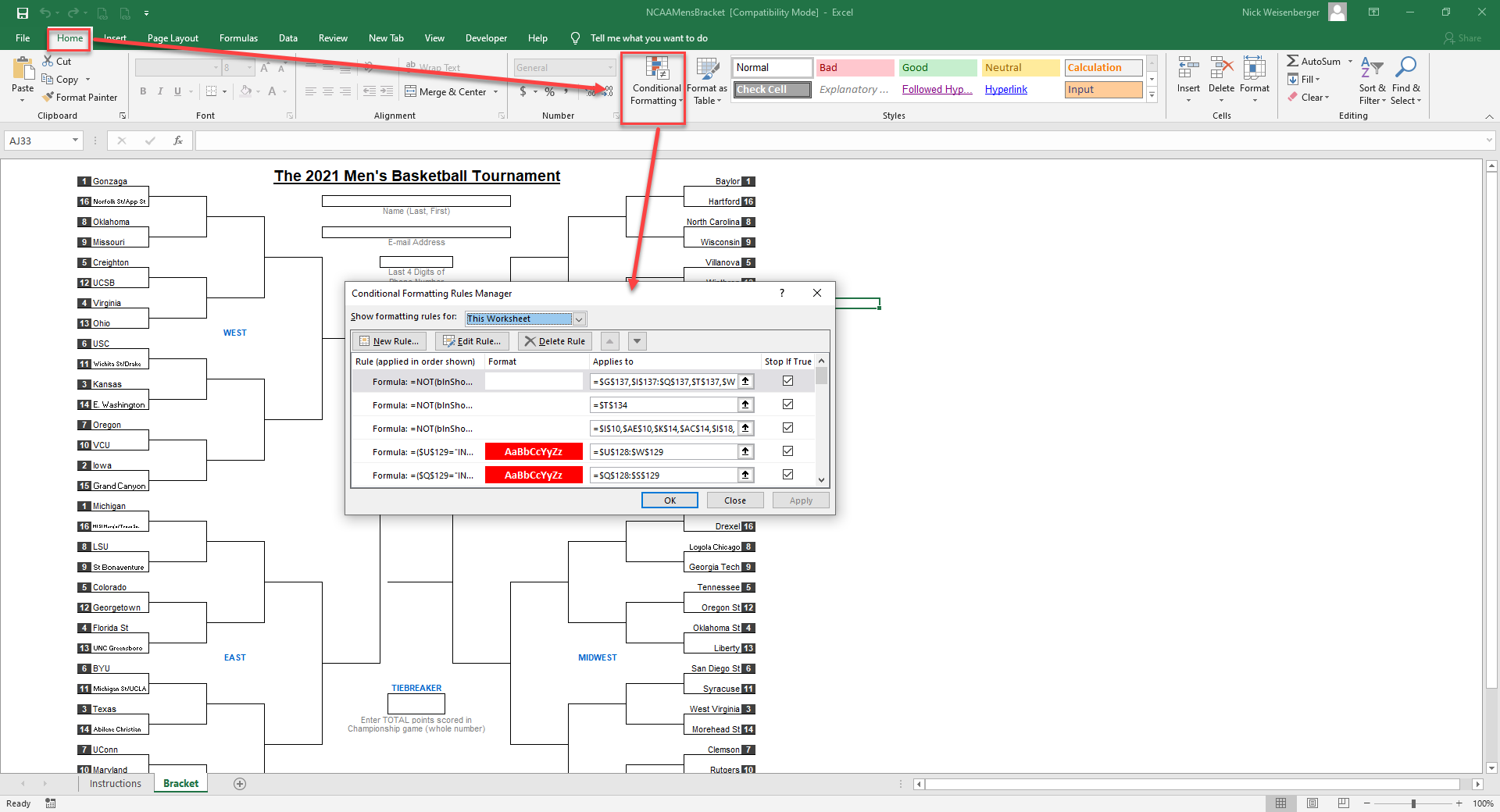
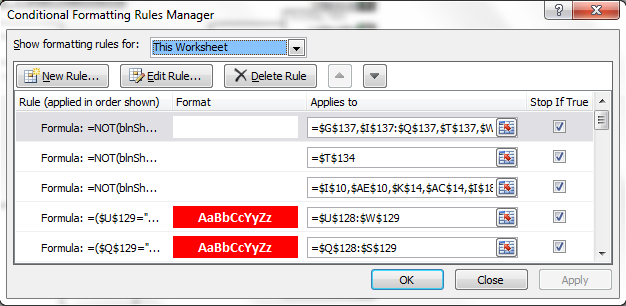
3. Look at conditional formatting rules: On the Home tab, go to Conditional Formatting, click Manage Rules, then Show formatting rules for This Worksheet to view them all.
4. Look through the formulas: On the Formulas tab, click “show Formulas” to show if they were manually typed in or if there is a formula calculating the values
5. Look through the macros: Hopefully, the person writing the code left lots of good comments so it’s easier to follow along with what each piece of code does
Watch me quickly walk through David's 2021 March Madness brackets going through the five points listed above:
It’s been one year since the COVID-19 pandemic began. Last year, since March Madness and other sports at the time were cancelled, I started thinking about what other things I could do to fill in the void of not having any March Madness brackets to fill out. The answer came in a suggestion from a reader to create an NFL Draft game spreadsheet. I’ve updated the template for this year.
Inside this template I've listed the top 100 draft prospects according to ESPN. Each draft game player (and the template is currently setup to handle ten players) are randomly assigned ten future NFL players by using a randomize macro. The earlier your players get drafter the better, as the draft position counts for points and the lowest number of points wins!
The random number macro is pretty simple:
'define range of cells for random numbers
Dim Player1 As Range
Set Player1 = Range("AN2:AN101")
Player1.ClearContents
For Each a In Player1
Do
a.Value = (Int((100 * Rnd + 1)))
Loop Until WorksheetFunction.CountIf(Player1, a.Value) < 2
Next
Based on some good user feedback I added the option where each player can now try to predict which team will select their players for additional bonus points. Well, negative bonus points that is, as it subtracts points from your total score (remember, lowest score wins).
See how the Draft Game spreadsheet works in the video below:
Even if you have no interest in the NFL, football, or drafts, you can still learn a bit about Excel by examining the random number generator macro, or the vlookup and sumif formulas used. The scoreboard uses a “rank without ties” formula:
For now, the spreadsheet is setup to handle ten players. To add more, the formulas and macro will need to be modified. If enough people are interested in using this sheet, I will work on making it scalable so it can automatically adjust to the exact number of players.
I've been trying to think of ways to make up for the loss of sports. The 2020 NFL Draft is one of the few sports-related things still scheduled to go on (for now). My friend Isaic gave me the idea to make a NFL Draft Game in Excel.
Inside this template I've listed the top 100 draft prospects according to ESPN. Each player (and the template is setup to handle ten players) are randomly assigned ten future NFL players by using a randomize macro. The earlier your players get drafter the better as the draft position counts for points and the lowest number of points wins!
Update 4/17/20 - new options added!
Based on some good user feedback I added the option where each player can now try to predict which team will select their players.
See how the Draft Game spreadsheet works in the video below:
Even if you have no interest in the NFL, football, or drafts, you can still learn a bit about Excel by examining the random number generator macro, or the vlookup and sumif formulas used.
For now, the spreadsheet is setup to handle ten players. To add more, the formulas and macro will need to be modified. If enough people are interested in using this sheet, I will work on making it scalable so it can automatically adjust to the exact number of players.
Let me know if you like this game or if you have any suggestions or questions.
It’s the most wonderful time of the year! March Madness 2017 edition is here and the first of the four “play-in” games will begin on Tuesday, March 14th (which we’re not counting off any points for in my office pool). Once again, I’ll be using David Tyler’s NCAA Excel brackets, the same ones I’ve been using since at least 2010, as they're still the best as far as I’m concerned. I'd like to give a special thanks to David for continuing to update and post his excellent brackets each and every March and giving us something to look forward to as we crawl out of the final few weeks of winter (70 degrees a few weeks ago here in Ohio, now it’s snowing!).
I’m a firm believer that a great way to increase your Excel knowledge is to reverse engineer Excel spreadsheet templates, like these office pool March Madness brackets. Previously, I’ve shared 11 things you can learn from the best Excel brackets and they all still apply for this year’s version. David doesn't lock or hide anything behind password protection so you can examine all the formulas to see how they work and make any modifications you desire.
There are two files: the bracket manager and the individual bracket file, that can be downloaded by following the link below. Download the files and start picking them apart! http://www.whistleblows.com/
If you’re worried you might not be able to use the March Madness Excel brackets have no fear. They are easy to use and you can watch this short video I made to show you just how easy it is to use David's brackets. Simply click on each team to advance them (don't forget to enable macros).
As far as actually filling in the bracket, here are some interesting stats about March Madness and a few tips that might help you choose your teams.
A No. 16 seed has never beaten a No. 1. Like ever.
A No. 12 seed usually beats a No. 5 seed.
Odds of picking a perfect bracket: 1 in 9.2 quintrillion.
Odds of picking a perfect bracket using historical data and basketball knowledge: 1 in 128 billion.
I know some readers of this blog skip over the templates I post, especially if they're sports related. but there really are many lessons that can be learned by examining them that you can apply to your own spreadsheets to improve them. What new lessons about Excel have you learned by breaking down a template?
It’s the most wonderful time of the year! March Madness 2016 edition is here and the first of the four “play-in” games have already begun (which we’re not counting off any points for in my office pool). Once again, I’ll be using David Tyler’s NCAA Excel brackets, the same ones I’ve been using since at least 2010, as they're still the best as far as I’m concerned. David doesn't lock or hide anything behind password protection so you can examine all the formulas to see how they work and make any modifications you desire. There are two files: the bracket manager and the individual bracket file, that can be downloaded by following the link below.
I'd like to give a special thanks to David Tyler for continuing to update and post his excellent brackets each and every March and giving us something to look forward to as we crawl out of the final few weeks of winter.
I also created a short screen capture video to show you just how easy it is to use David's brackets. Simply click on each team to advance them (don't forget to enable macros).
Pictured below is my bracket. You should probably just go ahead and treat it like the Bible, Koran, and Torah all rolled into one. It’s as good as truth.
Good luck in your office pools!
Nickstradomus
*just a special note to my email subscribers: I will hopefully have an option soon where you can opt out of notifications about sports templates, that is if you only want to read about my general Excel tips and tricks.
I preach this lesson all the time around here, I know, but you can seriously learn so much about Excel simply by examining templates and other professional's spreadsheets. The 2015 March Madness brackets are no exception. This downloadable template for the 2015 NCAA basketball tournament is an outstanding example of how to harness the full power of Excel and it doesn't involve finances, inventory, tracking, engineering, or charts.
B. David Tyler’s NCAA Excel brackets are the best I've seen, and I've been using his brackets since at least 2010. David doesn't lock or hide anything behind password protection so you can examine all the formulas to see how they work and make any modifications you desire. There are two files: the bracket manager and the individual bracket file. First, download the files here:
Now, open the files and start picking them apart! Listed below are 11 Excel lessons that can be learned from digging into these two templates:
1. Formatting - The bracket sheets are nice and clean and easy to use. Why is that? Because there isn't a lot of flare or unnecessary stuff to distract you. Only a few colors are used, grid lines are turned off, all the font sizes and colors make sense, etc. Less is more.
2. Hidden sheets - When you first open the NCAA bracket you only see two sheets: instructions and the bracket. But if you right click on one of the sheet tabs and click unhide you’ll see there are some hidden sheets, and it’s these sheets that do a lot of the heavy lifting. The beauty of the brackets is the fact you don't have to modify a single formula yourself, everything has been done for you.
3. Protection - When other users are going to be using your spreadsheet you may want to use protection to protect key cells. Fortunately, David did not use a password on the protection, so you can unprotect the sheets to see what all the exact formulas are.
4. Conditional Formatting - Conditional formatting is where you set up rules to change the format of a cell based on a condition. When you get a pick in the bracket incorrect you’ll notice the font turns red with a strikethrough. This is done through conditional formatting. To see how it works, go to the Home tab, click on Conditional Formatting, then Manage Rules. Show formatting rules for: Sheet: Bracket then scroll down and see all the rules.
5. Organization - The 2015 NCAA bracket shows you how to structure a spreadsheet that is potentially going to be used by thousands of strangers - everything is clearly labeled, instructions are included, and there’s information about where to go if you need help.
6. Drop Down Lists - After you make a few selections, you may get second thoughts and decide to go back and change your picks. To do so, you’ll change the winning team by picking from a drop down list. To see how the drop down list works, go to the Data tab, then Data Validation.You’ll see the setting is List and uses a Defined Name. Go to Formulas tab then Name manager to see all the defined names.
7. Error Checking - Are there little green triangles on the cells that are annoying you? To remove them, go to File>Options>Formulas>Error Checking and uncheck the “Enable background error checking” box. There is also a macro in the bracket file used to check for common errors.
8. Macro: HTML Export File - One of the macros included in the pool manager file shows you how you can export an Excel sheet to a HTML file (called exportLeaderBoard). Open the Excel document and press Alt-F11. This will open up the Visual Basic editor, and by clicking on sheet and module names on the left side of the screen you will be able to view all the code.
9. Macro: Import Multiple Excel sheets - One of the best features of the bracket manager file is the ability to automatically import multiple brackets into the manager all at once. This is done via an Excel macro. All the work is done for the user, as the manager of the pool I simply have to place brackets into a folder then press a button. The user’s of your spreadsheets will really appreciate it if you make everything easy for them.
10. Macro: Hyperlinks - Another nifty feature of the basketball brackets is the ability to simply click on a team to advance them. This is accomplished with a very cool hyperlink macro. The code is run every time a hyperlink is clicked and it checks to see if a game cell is selected, and if so, it advances the team that was selected.
11. Spreadsheets can be fun! - For many, the mention of Microsoft Excel brings up nightmares of pie charts, pivot tables, and data entry. But using Excel can be fun, especially when you’re competing in an office pool. I really like the feature in the manager file that let’s you run scenarios: what if this team wins, and this teams loses, what are my chances of winning?
I know some readers of this blog skip over the templates I post, especially if they're sports related. but there really are many lessons that can be learned by examining them that you can apply to your own spreadsheets to improve them. Special thanks to David Tyler for continuing to update and post his excellent brackets each and every March. What new lessons about Excel have you learned by breaking down a template?
The
NBA Playoffs start on Saturday, April 20th (two days after the end of
the regular season), thus you don’t have a lot of time to complete your
2013 NBA Playoff bracket. All the first games of the eight first round match-ups will take place on either April 20 or 21st.
The
NBA playoff structure is a bit unique in that there are no first round
byes, all sixteen teams (eight from each conference) compete in the
first round of the playoffs. The format of the NBA playoffs consists of
each team needing to win four out of seven games in order to advance to
the next round. In the first three rounds of the playoff the series
follow this home and away format: HHAAHAH. The Finals follow the format:
HHAAAHH.
Miami has clinched the number one seed in the East while Oklahoma City wrapped up the West. My Cleveland Cavaliers will be watching from home again. Who do you think will win the title? Miami has looked nearly unstoppable this season and I think it will be a major shock and upset if they do not win it all. What about you?
If you’re an avid NCAA men’s basketball fan and March Madness isn’t enough for you than you can also download the 2013 NIT Tournament Bracket. The National Invitation Tournament is comprised of many of the teams that some argue should have been in the NCAA tournament field but got left out. You would think all of these teams would be really bad when in reality some automatic bids to the NCAA tourney go to really bad teams (twenty loss Liberty, for example) thus teams like Kentucky, Iowa, Ohio University, are forced out of the field of 68 and into the NIT. This is still a good thing for these teams because they get the extra practices with come with the postseason while the other teams are sitting at home until next year.
This bracket is pretty straight forward. I’ve included the dates, times, and TV coverage for each game. However, there is no Pool Manager for the NIT spreadsheets (have you ever heard of anyone running an NIT pool anyways?).
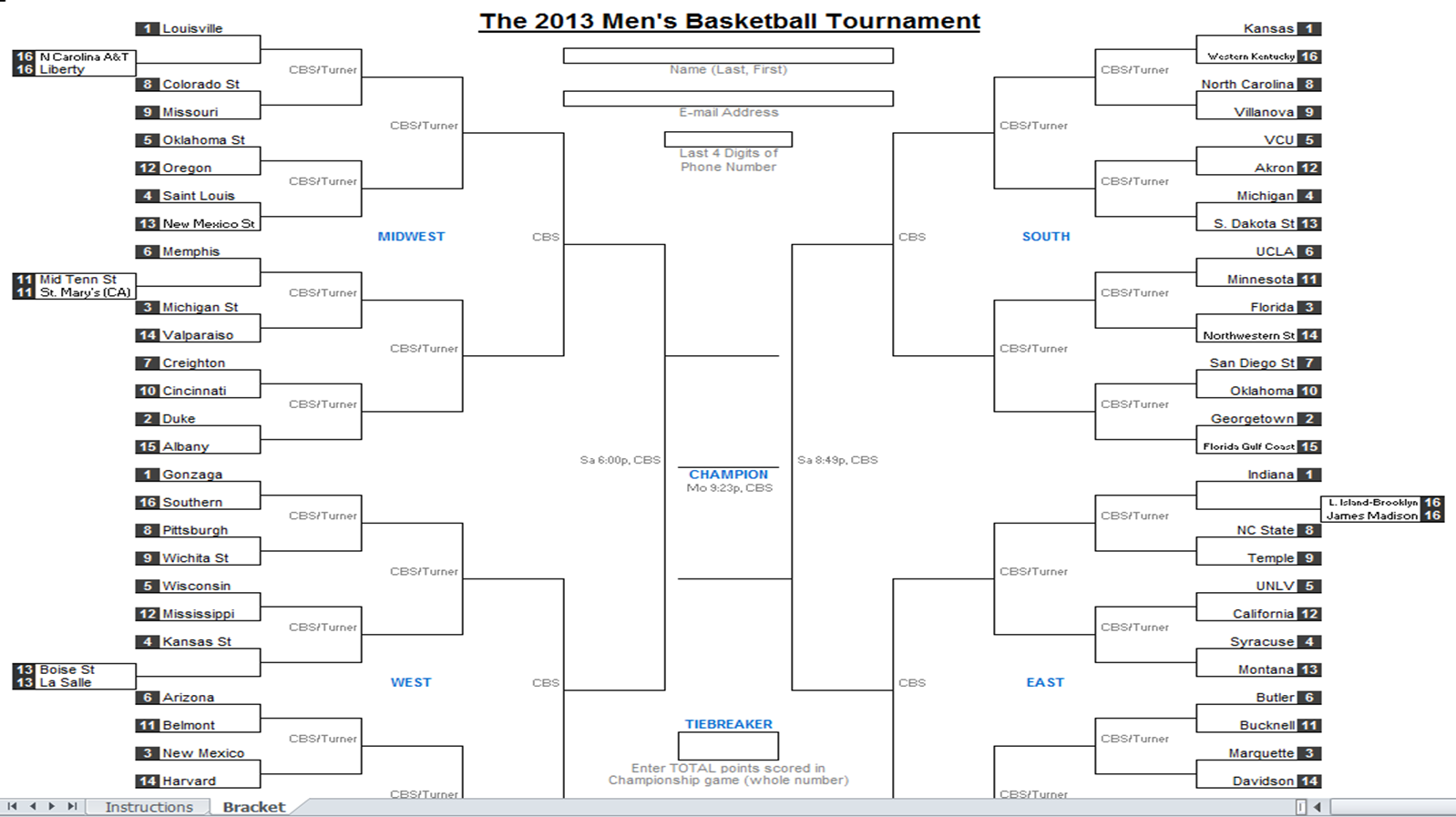
The downloadable 2013 NCAA Tournament Brackets are here! It's finally time to download and print your 2013 March Madness Brackets. I’ve made my own tournament brackets for almost every other major sporting event (see them all in the downloads page) but I’ve never attempted to make my own March Madness brackets. Why? Because for the last several years I've used David Tyler's spreadsheets, which I consider to be the best NCAA Excel brackets out there and are nearly flawless in my opinion. They're free to download too!
Instructions are included with the spreadsheets. To learn more about how the brackets are created read our interviews with David from 2010 and 2011. Also, be sure to visit David’s website, When the Whistle Blows.
My Buckeyes won the Big Ten Tournament and are one of the hottest teams in the nation right now. Who do you have winning the big dance? Let us know in the comments below!
I’ve never done this
before but being a big fan of the Big Ten I’ve decided to create a printable
Big Ten Tournament Bracket this year. The men’s basketball tournament begins on
Thursday, March 14th in the heart of Big 10 country at the United Center in Chicago,
Illinois. The cool thing about this editable Excel bracket is it includes the complete Big Ten
basketball tournament schedule including all of the game times and television
channels. Currently, I only have seedings listed. I will list the actual teams
once they are known and then update the spreadsheet on Sunday.
I can’t wait until the
Big Ten Tournament starts! There are so many questions to answer: Will Michigan
have an early exit? Is Indiana fading? What Minnesota team will show up? Can
Iowa or Illinois spring an upset? How far can Ohio State go? With the way each
of the top five teams have dropped random games they should have won this year
I’d argue there is no clear favorite to win the Big Ten Basketball
Championship. What do you think? I’d love for you to share your thoughts on the
Big 10 tournament!
The NBA 2012 schedule has been released and I’ve created a
Microsoft Excel spreadsheet of it available for free download. The NBA
preseason has already begun (not included in the Excel file) and the regular
season begins October 30th. File is hosted on box.com. If you're an NBA fan you can also check out our mock draft creator. The NBA 2013 schedule is sorted by teams and by date. Remember, when the playoffs roll around (seems like a long, long ways off for now) we'll have a playoff bracket for you to download. Until then, enjoy the regular season!
The 2012 NBA playoffs are here and that means it's time it fill out more brackets! Download the 2011-2012 NBA Playoff Excel Bracket I whipped up from Google docs. Once I find a complete schedule I will go back and add it to the Excel file. I'm also trying something new for Excel Spreadsheets Help by utilizing Google Docs. So who do you have winning the NBA crown? I'm a Cleveland fan, so I don't really care as long as it's not Miami.
The 2011-2012 NHL regular season has ended and the Stanley Cup playoffs are here which means it's time to download, print, and fill out your bracket. I have created a downloadable Excel spreadsheet with the complete NHL playoff bracket. Fill it out on your computer or print it out. Maybe next year I'll get around to adding a bracket manager in order to keep score in a pool. Download the 2012 NHL bracket here or sign-up for my Excel tips newsletter to receive the .xls file as an email attachment (you can unsubscribe at any time).
One note about the Stanley Cup playoffs - unlike March Madness the top seed always plays the lowest seed so you may have to reshuffle the picks on your bracket after the first round.
Also included with the Excel spreadsheet is the date, location, time, and TV network for all the games in the first round of the playoffs.
March Madness is here! The conference tournaments are over and the field of 68 teams has been set. It's time to fill out those brackets and try to predict the upsets. David Tyler, author of When the Whistle Blows blog, has created what I consider to be the absolute best downloadable NCAA basketball tournament brackets in Excel.
What makes David's brackets better than any other spreadsheets I've tried? The brackets are very user friendly - even if you don't have a lot of Excel experience (or any at all) you can quickly and easily complete David's brackets. Instructions are included with the Excel file. Or if you want to simply download the bracket, print it off, and fill it out by hand.
This year's bracket also enables the pool manager to option to score the "First Four" play-in games of the tournament.
Click here to go to When the Whistle Blows bracket page to download the 2012 NCAA tournament bracket pool manager and March Madness bracket.
·By
using the sumproduct formula and conditional formatting we have
replaced the VBA COLORFUNCTION, making the spreadsheet much more user
friendly. No need to press crtl+alt+f9 to update the formulas!
·I
moved the scoreboard to its own individual sheet and included a few new
stats, such as the bowl game picked correctly by the most number of
players.
·I
expanded the default number of players to twenty but there’s still the
issue where new players beyond the first twenty added to the pool are
not automatically accounted for in the leader boards.
Please
keep in mind; this is just the beginning of the evolution of this
spreadsheet. The end goal is to automate inserting the exact number of
players along with all of their picks. There will also be some sort of
tie-breaking function, like guessing the score for the BCS championship
game or using a confidence interval to rank each pick.
And
hopefully by the time this new spreadsheet is completed we can throw
the whole thing out because we’ll finally have a college football
playoff!